Showing posts with label setup printer. Show all posts

Wednesday, November 20, 2019

Review about new Canon Pixma TS8320 printer

Canon Pixma TS8320 printer

The Canon Pixma TS8320 ($129) is a compact, inkjet all-in-one that is best suited for photo-printing enthusiasts. It has an SD card slot on its front panel, can print on specially coated CD/DVD discs and offers two paper trays so you can keep plain as well as photo paper loaded. 

Most important for photographers, the TS8320 is outfitted with six individual ink cartridges, offering the possibility of a wider color gamut in photo prints by employing a photo blue ink cartridge in addition to two black inks and the traditional cyan, magenta and yellow.

The TS8320 comes in black, white and red, and offers some fun features aimed at smart home enthusiasts: support for Google Assistant, Amazon Alexa and IFTTT (If This Then That).

Design

With its paper trays retracted and the touch-screen control panel folded down against the body, the TS8320 is very compact, measuring roughly 14.6 x 12.5 x 5.5 inches. However, the depth increases to 14 inches when you extend the paper cassette beneath the body to hold letter-size paper. The rear input tray significantly increases the depth; it angles backward when lifted for use, making the total depth about 25 inches. The rear paper tray also increases the height to roughly 11.5 inches.

To operate the TS8320, you use the large, 4.3-inch color touch screen, which makes a big first impression and worked well in our testing. There are not any physical buttons on the control panel other than the power button. The big touch screen offers large virtual buttons for the three main functions (copy, scan and print) and smaller icons along the bottom for making changes to settings. We found the menus well organized and intuitive to navigate. 

The SD card slot is on the front panel, at the bottom left next to the paper cassette. This allows you to print photos directly from a camera's memory card, without having to plug it into a PC. There is no USB Direct print port for printing files from a thumb drive.

"To operate the TS8320, you use the large, 4.3-inch color touch screen, which makes a big first impression and worked well in our testing."

Print speed


Text printing was roughly average in speed. The TS8320 printed our five-page test document in 34.4 seconds, or 8.7 pages per minute (ppm), versus the category average of 9 ppm for comparable models. The Editor's Choice Canon Pixma TS9120 printed the same document in just under 27 seconds (11.2 ppm).

Our six-page, mixed-text and graphics PDF printed more quickly that average, arriving in 1 minute and 52 seconds, or 3.5 ppm, versus the average of 2 minutes and 14 seconds, or 2.7 ppm.

Photo printing was impressively fast. Our letter-size, high-resolution glossy print emerged in 2 minutes and 2 seconds — less than half the average time of 4 minutes and 15 seconds. The Canon TS9120 was similarly fast, printing the photo 5 seconds faster than the TS8320. The Epson Expression XP-640 was slower, taking 2 minutes and 33 seconds. 

Copy and scan speed


The TS8320 made a color copy in 23 seconds, which was faster than the category average of 27.7 seconds. By comparison, the TS9120 made a color copy in 17.3 seconds; but the fastest model to date, the HP OfficeJet Pro 9025, made a color copy in just 12.5 seconds.

The TS8320 made black-and-white copies at roughly average speed, making a copy in 14.6 seconds, compared with the category average of 15.8 seconds. (The fastest model on this test is the HP OfficeJet Pro 9025, at 8.7 seconds.)

Print quality


Text prints from the TS8320 looked good, but not great. Letterforms looked adequately dark, but up-close edges looked somewhat bumpy. 

Graphics looked more impressive, printing with well-saturated, natural-looking colors and accurate contrast. Details looked sharp and midtone transitions looked smooth. Some very mild banding was evident in flat areas, as were the borders of text boxes in our test PDF. Duplex prints looked just as good as single-sided prints.

Glossy photos had plenty of detail and accurate textures. I liked the prints I got on glossy and matte papers. Colors looked well saturated and very natural. There were differences, however, compared with glossy prints from the Epson XP-640, for example: Our test portrait's light complexion looked "cooler" and was not "warmed up" like the Epson's, with reds and yellows more saturated in the skin tone.

Ink cost and yield


The TS8320 uses six ink cartridges: a pigment black (primarily for text), a dye-based black (primarily for graphics) and four dye-based colors (cyan, magenta, yellow and photo blue). Three capacities of ink cartridges are offered: standard and two levels of high yield (XL and XXL).

Overall, according to our calculations, the TS8320's ink costs are higher than the average for comparable inkjet printers we've tested. For the following costs, we calculated using the cost of individual ink cartridges.

Using standard cartridges, the TS8320 offers costs per page of 9.5 cents and 23.6 cents for text and graphics, respectively, versus the averages of 7 cents for text and 19.6 cents for graphics. By comparison, the Epson XP-640 has lower-than-average costs per page of 5.8 cents and 18.8 cents, respectively.

Setup and software


Basic setup of the TS8320 was straightforward. You remove half a dozen pieces of orange shipping tape and some cellophane. Plug in the printer, turn it on and select your language on the touch screen, which then walks you through the ink cartridge installation, showing a graphic of each cartridge as you install it.

Although a CD-ROM comes in the box, the printed start guide's large print instructs you to go online (ij.start.canon>setup>go>start) to download the software. (The CD-ROM setup is covered at the bottom of the page, in small print.) 

The software download includes the printer driver, scan utility (Win/Mac) and a Scan Utility Lite option for Macs. The online download, however, did not include the Easy-PhotoPrint Editor application. I had to find that myself on the TS8320's Drivers & Downloads page. The same was true of the online software installation I ran for a Mac running OS 10.12 (Sierra). Easy-PhotoPrint Editor is used to create and print collages, calendars, cards, stickers and CD/DVD disc labels.

Read more in detail: tomsquide
Monday, November 4, 2019

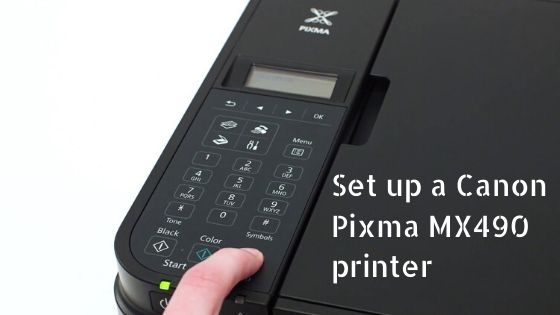
Set up a Canon Pixma MX490 printer through wirelessly

setup canon pixma mx490 printer

Canon Pixma MX490 printer setup with your laptop or computer, here are some steps needs to follow to connect it.

Step1: Please make sure the router is connected properly with the printer.

Step2: Check your printer is connected to the socket, if green light on it means printer is ON.

Step3: Click on the menu button and press OK to Wireless LAN Setup.

Step4: Press the Stop button until it display Wireless LAN Setup and the option Standard Setup > under it on the LCD.

Step5: You can setup with the other option after go to other Setup then press OK, and complete the setup of printer in your PC or phone.

Follow all these steps to setup your canon pixma MX490 printer. If you have any problem with setup please contact with our canon customer support.

Friday, August 9, 2019

How to troubleshoot HP Envy 4520 printer?

troubleshoot HP Envy 4520 printer

HP Envy 4520 printer is the latest printing device in the series of HP Envy. This printer is very useful and helpful for both home and office use. A small business uses mostly this printer nowadays. It has some interesting features that make it very special like very good quality of printing and fast speed of printing the document and images. This is specially designed for good quality results with less amount of time. 

The main function of this HP color inkjet photo printer is a copy, scan, wireless printing, AirPrint, two-sided duplex printing, touch screen, Instant Ink ready so you'll never run out of ink, and more. The only thing in this printer makes you feel bad that it has not an SD slot and an Ethernet network capability. Otherwise, it is a world-class printing machine in terms of scanning, printing, and copying with easily replacement setup of the cartridge.

If we are using this electronic device then we have to also face their issues, error, and problems. These problems have many types like not printing the photo or document, scanning issue, ink cartridge issue, printer offline, driver and software installation error and many more. So in this blog, we discuss the problems that occur in the HP Envy printer. Which kind of error is there and how to troubleshoot or fix these errors? Let's move on to troubleshoot part of the HP Envy 4520 printer.

HP Envy 4520 Troubleshooting

Printer Offline Error

printer offline error


Step1: Click on the Start menu button on the computer and go to “Device and Printers”
Step2: Then right click on the HP Envy 4520 Printer symbol and then go to “see what’s printing” section.
Step3: Remove the checkmark in “Use Printer Offline” option. After some time your printer will be online.
Step4: If your printer does not show online then you can Turn OFF the printer and disconnect from your PC and after few time reconnect it with PC and Turn ON the power. 
Step5: At last you can restart your PC with that and your Printer will work properly.

Check detail article about offline error in HP Envy 4520 printer

Print Stuck in Queue Error

Print Stuck in Queue Error


Step1: If the document is not print then update your drivers and firmware.
Step2: Check the status of the print spooler. If it is congested then clear and restart the print spooler.
Step3: If the print queue dialogue is stuck, it means you are using too many applications at that time. Click on “Devices & Printers” in the start menu on Windows then click on “See what’s printing” option. 
Step4: Check if your older document is not print and display with an error message, then right click on the document and remove it. 
Step5: Check the printer job is paused then resume it from here.

Read article about error printing in HP envy 4520 printer

Screen Not Displaying Devices Error

Step1: If the screen not displaying the device the cause of no updated driver is used for the printer. Then install the latest printer drivers.
Step2: If the device is connected and is not listed in your “Devices and Printers” then check it in Device Manager. Log in as an administrator to make any changes into device settings in Device Manager.
Step3: If your printer not recognizing the device then turn OFF the printer and remove the cable, then turn ON it after few seconds.

Ink Cartridge Error

HP-Ink-Cartridge

Step1: If the device will print but not display any ink on the document then device cannot recognize the ink cartridge.
Step2: Make sure the cartridge is not empty and properly inserted.
Step3: Remove the ink cartridges are dirty If it then clean with a cloth or polish it.
Step4: Press the Ink button on printer and message display as Charging Ink then your problem is solved.

Read full blog post about the ink cartridge error in hp envy 4520 printer

Wi-Fi Connectivity Error

Wi-Fi Connectivity Error


Step1: Check the router and computer are turned on and are connected with the same wireless network.
Step2: Check the printer software is installed or not, if not then install it.
Step3: Check the networks and router are overloaded, then reboot the router.
Step4: If a printer has an IP address issue, then simply change the IP address of the printer and you can remove it and add it again with a new IP address.
Here you can check all the points about wi-fi connectivity error in hp envy 4520 printer
Check out our other post on this Printer Solution Hub. Hope in this blog we troubleshoot all the error in the HP Envy 4520 printer. If you are facing some other then please leave a comment so we are able to resolve your problem.

Thursday, August 8, 2019

How to Install Canon Pixma pro 100 Setup without CD

Canon printers are shipped with a setup CD to help consumers connect the printer to a computer. Depending on the printer model, the Canon printer setup CD may include some extra software applications related to printing. For example, the Pixma MX922 comes with Easy-PhotoPrint and My Image Garden applications for creating and printing photo projects. Although the CD provides a convenient way to quickly access the software needed for printing, you may still be able to connect a computer to a Canon printer even if you don't have the CD.

Install Canon Pixma pro 100 Setup without CD

Install Canon Printer Without CD


Whether you've lost the CD for a Canon printer or don't have a CD reader on your computer, you can visit the Canon Support website to access the user manual and setup software. After entering the printer model and information about your computer's operating system, you can download the software needed to install and run the printer, which is most cases includes a setup utility and driver. The driver is the software the interfaces the computer with the printer. You can also download all the applications that were originally included on the setup CD, although this step is optional.

One benefit of downloading printer software directly from the manufacturer's website is being assured that you have the most current version. Software provided on a setup CD can become outdated in a matter of months.

You can also update the printer's firmware from the Canon website. Firmware is pre-installed software that controls the printer. Having a current driver and updated firmware can help avoid problems with printing.

Installing Canon Printer on Windows


If your computer is running a version of Microsoft Windows, you'll need to be logged on as an administrator before you can install printer driver software from either the Canon setup CD or downloaded from the Canon website. After downloading the setup and driver software, you should be given an option to run it. If you don't run a download file immediately, you can do so later my locating it in the "Downloads" folder and double-clicking on it.

Once setup is complete and the printer driver is installed, you may still need to complete steps in Windows to add the printer to the computer. These steps vary depending on the version of Windows you're running. Type "add printer" in the search field of the Control Panel if you're not sure how to proceed.

Using Built-In Print Drivers


If you want to do some quick basic printing without taking the time to download and install a driver and other software, you may be able to take advantage of your computer's built-in printer drivers. More recent versions of Windows and Mac computers include drivers for some popular printer brands as part of the operating system. These drivers only work for printers that support a USB connection and do not support many special features the printer may provide.

To find out if you can use a built-in driver, connect the printer to your computer using a USB cable and turn the printer on (you may need to use an adapter for the USB connector on a Mac). In many cases, turning on the printer will trigger printer installation. When installation is complete, you should be able to add the printer. Although this method may allow you to print, Canon recommends that you download the correct software if you plan to do a lot of printing.

Originally posted on techwalla